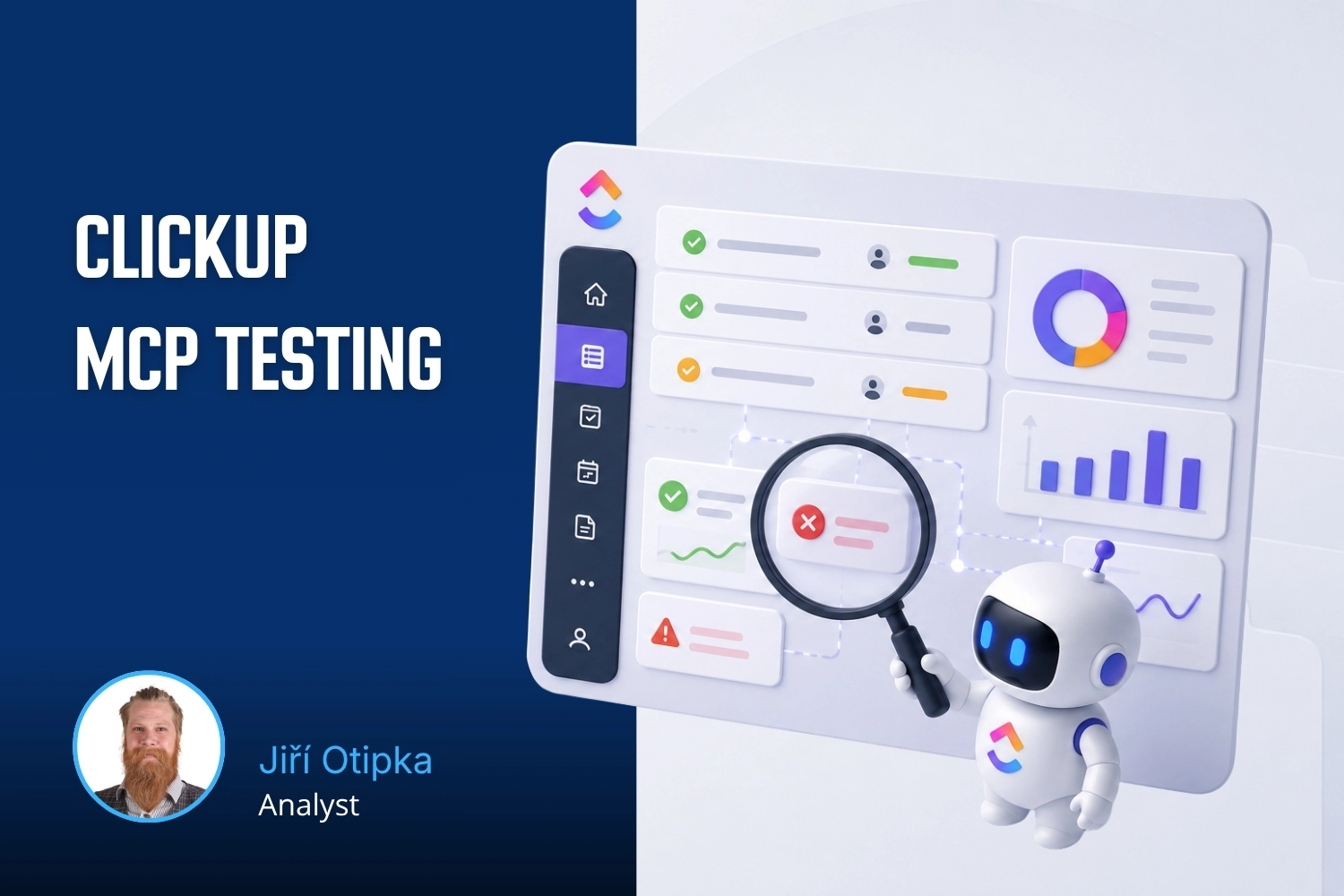
Take a look at our ClickUp backup solution. Automated exports, a GitHub repository, and a practical guide to keeping your company data under control.
In our day-to-day work, we rely on ClickUp for a large part of our operational know-how. ClickUp's native backup options weren't enough for us, so we built a workflow covering backup, recovery, and data viewing — because our goal was continuity of operations, not just data export.
Why the native export wasn't enough
When you want to back up data from ClickUp today, the first option that comes to mind is the native CSV export. It can be useful in some cases – for reporting or simple data extraction. But as a tool for a complete backup, it falls significantly short, especially when your daily work depends on context, comments, task descriptions, and task hierarchy.
We didn't want a quality backup just to have it sitting somewhere "just in case." We needed the backed-up data to be in a form that could still be meaningfully worked with in the event of a service outage or complete unavailability. That's precisely why we needed to approach the backup more comprehensively.
What risks we wanted to cover
Why back up data at all? What's it actually for? From our perspective, we wanted to cover specific scenarios that could realistically arise in our operations. We tried to answer a few basic questions:
What would we do if one of our spaces was accidentally deleted and couldn't be restored? Or if data was lost for some other reason? That would be a serious problem for how we operate.
What if ClickUp went down? Even a brief outage would be noticeably disruptive to our daily work. And the recent Cloudflare outage was a reminder that these situations aren't purely theoretical.
What if ClickUp experienced a longer-term service disruption or interruption?
And finally: what if we decided in the future to switch to a different SaaS tool for MeasureDesign? Could an existing backup make a potential migration easier?
How we figured out what we actually needed
Based on these questions, we concluded that we needed a solution that would let us automate the backup process. At the same time, we wanted to be able to restore data back into ClickUp and access it in a human-readable form – whether for review, auditing, or simply when no other option was available.
We also needed one more thing: automated monitoring of the entire process. What if something goes wrong with a specific backup on a specific day? We needed to know about it so we could address it, and so that any failure wouldn't go unnoticed.
Our solution in three parts
Based on the requirements described above, we built three tools that together form one functional workflow.
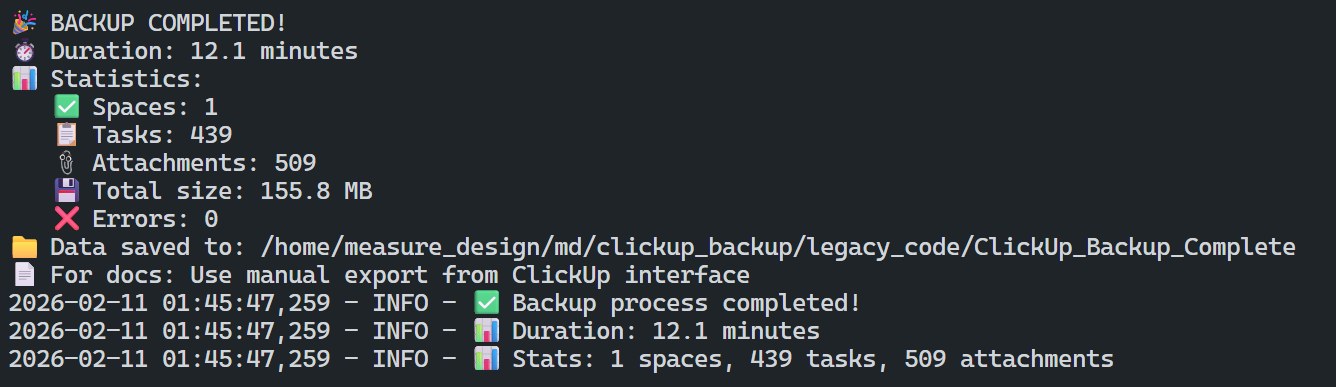
The first is a backup script. It runs every day, accesses ClickUp's API endpoints, and downloads all of our data, including metadata, attachments, and relationships. Subtasks retain information about their parent tasks, and tasks include their text content and attachments. Since we frequently share screenshots and images in tasks, a backup without attachments simply wouldn't be complete.
1 – Screenshot of a successful backup script run
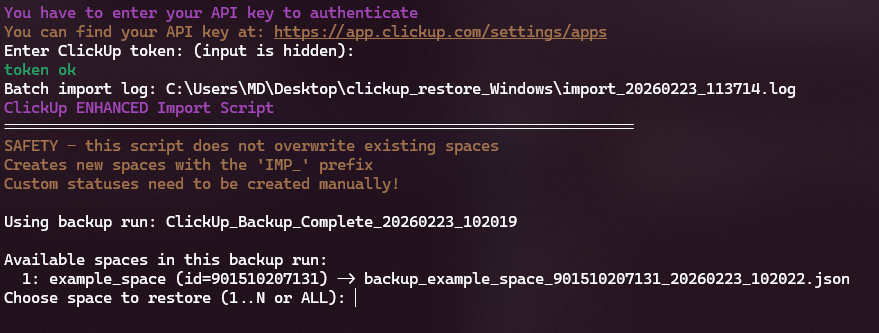
The second tool is a restore script. It lets us push data from the backup back into ClickUp if needed. This script does not modify any existing ClickUp data – it only creates new spaces from the backup, so there's no risk of losing anything else during a restore.
2 – Screenshot of the restore script in use
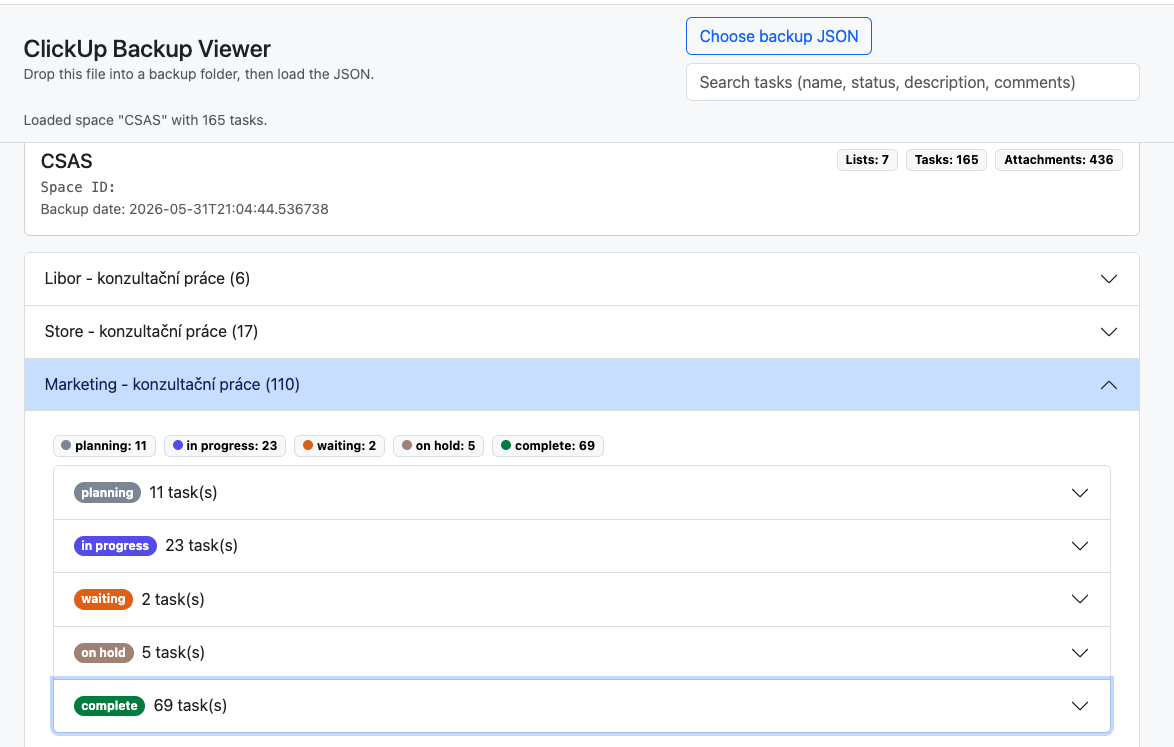
The third component is a viewer. It lets us display the contents of a backup in a readable, easy-to-understand format – essentially a web page you can browse through. Everything is organized hierarchically: spaces contain lists and tasks, and tasks contain their text content, comments, attachments, and images.
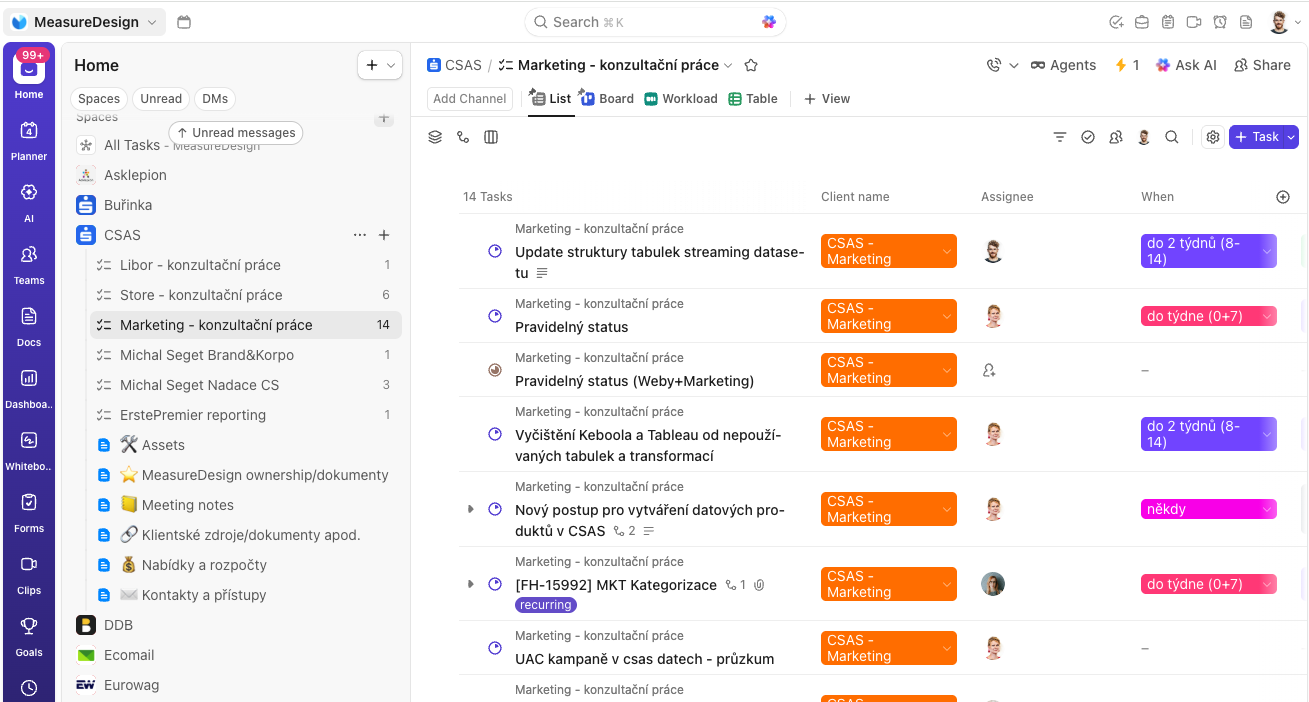
3 – Screenshot of our ClickUp environment
4 – Screenshot of the backup viewer
A data backup solves only part of the problem. The other part is whether you can actually use that backup for something meaningful. Our three-part workflow makes that possible.
How we deployed our workflow
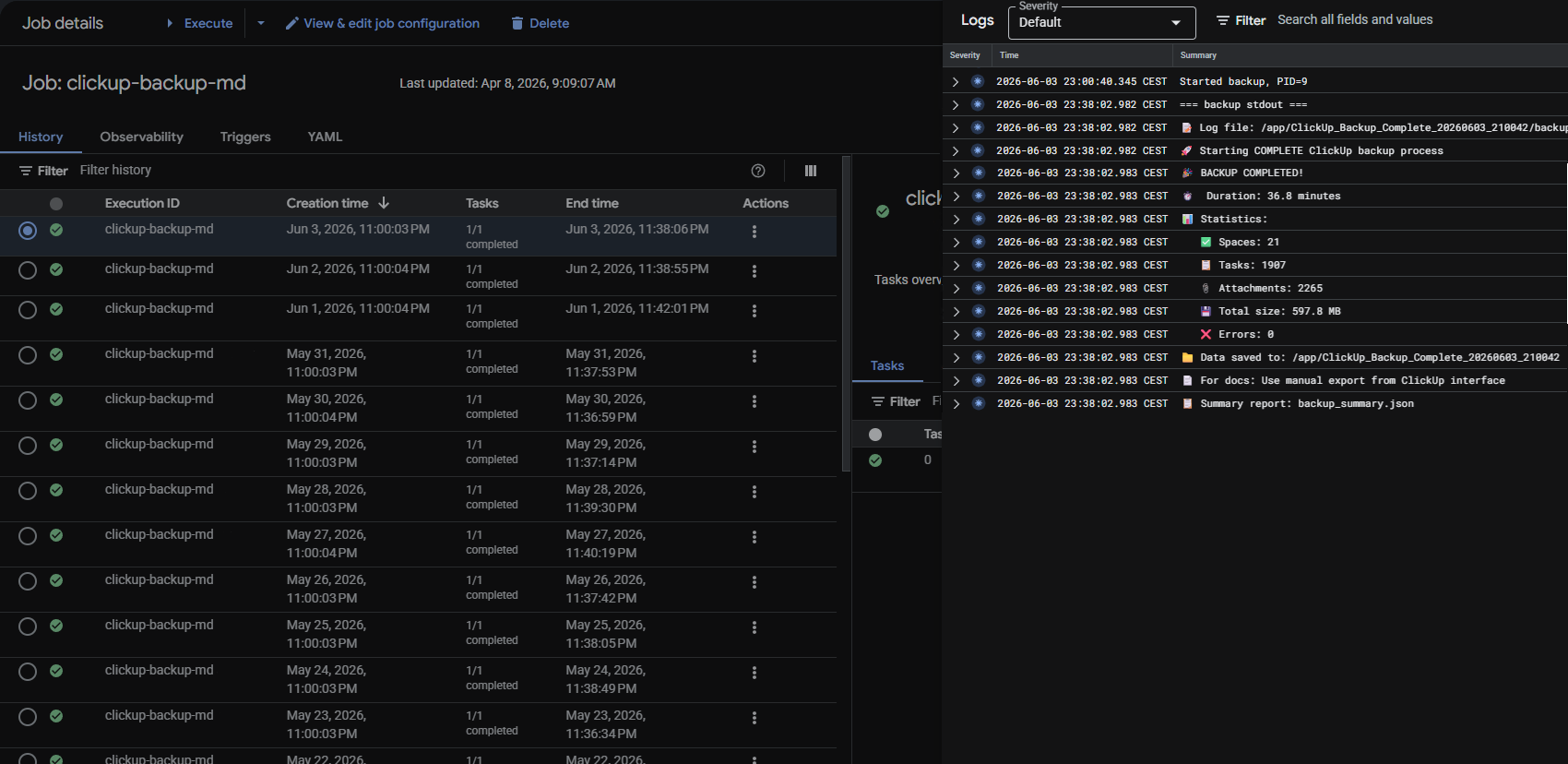
We deployed the backup process to Google Cloud. We use it frequently, so it was a natural fit. The backup runs nightly as a Cloud Run Job – it doesn't depend on any team member's computer and runs automatically on a set schedule. On top of the backup itself, we built monitoring that tracks whether each run succeeds and notifies us immediately if something doesn't go as expected.
Creating the backup isn't enough on its own. It's equally important to know that the backup was actually created and that no issues occurred during the process. That's why, alongside the backup process itself, we also addressed ongoing verification. The monitoring is a separate script that wraps the main backup process, checks whether it completed as expected, and evaluates the log generated during the run. If any errors or issues appear in the log, it automatically notifies us by email.
In our view, a backup that no one verifies isn't really a backup. That's why we don't back up manually – the entire process is automated, repeatable, and its output is regularly checked.
The backup output – all files, attachments, images, and other data – is stored in a dedicated Google Cloud bucket. The backup is therefore stored independently of ClickUp and remains separately accessible if problems arise.
5 – Screenshot of the ClickUp backup deployment
What this means for us
Having a reliable backup gives us greater confidence in our day-to-day operations. We can trust that if an unexpected event occurs, we'll be able to keep working. It also reduces our dependency on a single service and its availability – making us better prepared for potential outages as well as a possible future migration to another service.
Closing thoughts
SaaS tools like ClickUp are great for productivity, and we genuinely enjoy working with it. At the same time, it has become central enough to our work that it now holds a large part of our know-how and information we use on a daily basis. Data this critical shouldn't exist in only one place and in one vendor-defined format.
Our goal wasn't to replace ClickUp, but to complement it with the confidence that we won't lose important data – and that we'll be able to work with it outside of ClickUp if we ever need to.
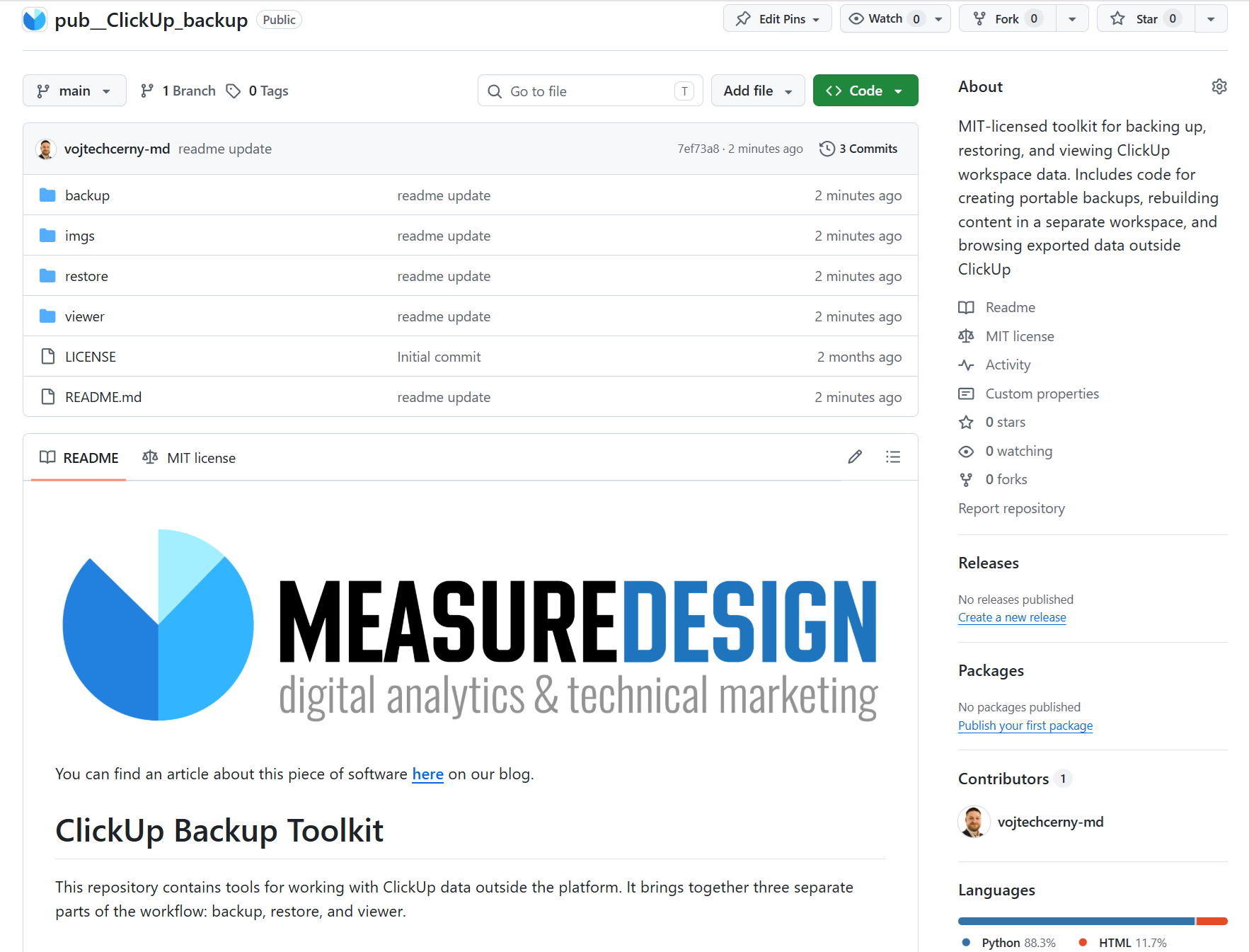
6 – Publicly Available ClickUp Backup Toolkit on GitHub
If our solution caught your interest and you'd like to use it or adapt it for your own needs, the complete technical implementation is available in a public GitHub repository. The repository includes all three parts of the workflow – the backup tool, the restore tool, and the backup viewer – along with documentation for deployment and operation.
The project is published under the MIT license and is provided without any warranties. Use, modification, and deployment are entirely at your own risk.
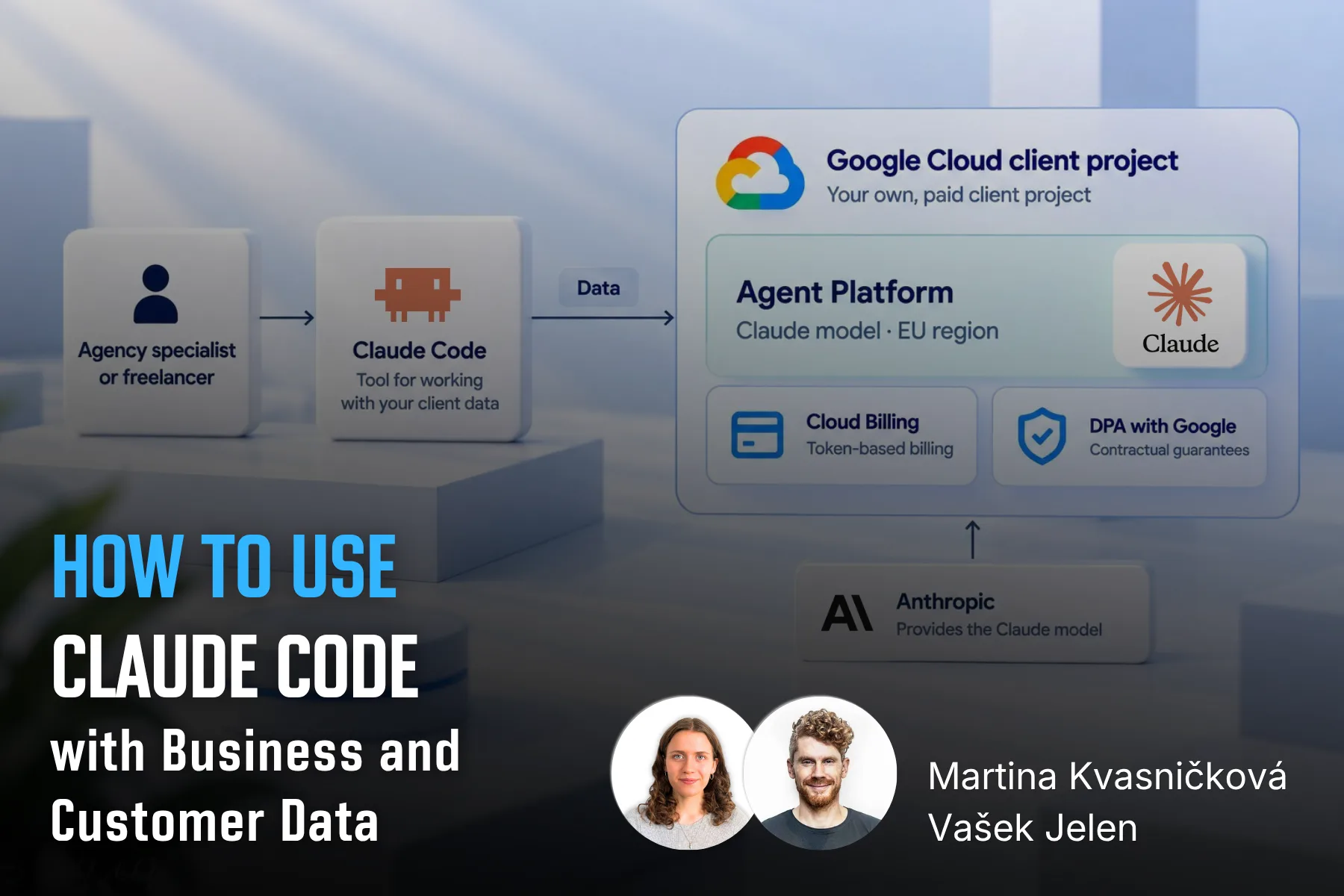
Working with client data in Claude Code requires control over how it's processed. This article covers setting up Claude Code through Google Cloud, so that the data are processed in the EU, according to the DPA and without model training.
Google Ads is one of the easiest media sources to connect to BigQuery. This guide covers DTS setup, Standard vs. Custom reports, service accounts, MCC structures, PMax tables, and common limitations.
Setting up a Google Cloud project takes just a few minutes. But basic guides leave out some important details. Here’s what to watch out for with project ownership, the free trial, and billing roles to avoid unnecessary problems later.
This year at MeasureCamp Czechia, MeasureDesign gave three talks. We covered AI analytics on company data, identifying bot traffic, and how to combine working in analytics with raising young kids.
Working on the go has its benefits, but also a few practical challenges. I’m sharing the setup I’ve fine-tuned over the years that lets me work comfortably from anywhere – from connectivity and a second monitor to ergonomics.
What should a PPC specialist know about analytics and data collection? In our workshop for uLab, we covered the entire chain, from the technical components of tracking and media platforms to collecting and activating first-party data.
How do you get data from multiple ad platforms into a single data warehouse, typically BigQuery? We’ll walk through the core architecture and key decisions before you start exporting data from Google Ads, Meta Ads, Sklik, and other platforms.
Part 3 of our first-party data series gets technical again – we'll show you how to check that data is correctly reaching each system and doing what it should. We'll look at outgoing hits in DevTools and at checks directly in the ad platforms.
A detailed guide to sessionizing the GA4 BigQuery export — from identifying sessions and reliably ordering events to two attribution models (First Event Available and Session Start), their limitations, and validating agreement between them.
Learn how to deploy server-side tracking on Google Cloud Run. Compare Stape vs Cloud Run, configure load balancers, choose billing types, and test your setup.
Complete technical guide to collecting first-party data via dataLayer, normalizing, hashing, and sending through server-side GTM to Google Ads and Meta.
Testing ClickUp MCP: hands-on experience with AI-powered automation, security concerns with access tokens, practical limitations, and who should use it.
Learn how first-party data improves campaign performance, measurement accuracy, and cross-device tracking. Discover practical ways to collect and use it.
Workshops on advanced digital analytics: BigQuery, cookieless tracking, consent, attribution, and building data warehouses for reporting and activation.
Why analytics is an excellent career for women, including those returning from maternity leave. A personal story about transitioning into data analytics.
A look back at Reshoper - advising e-shop owners on tracking and measurement, plus a roundtable on marketing automation with insights on self-hosted N8N.
From Idea to App in 48 Hours 🚀 Building AI-powered apps at #HackYourWeekend using Claude Code, tracking with BigQuery, and lessons from team development.
Recap of PPC Camp: my presentation on legally measuring data without user consent - cookieless tracking, sGTM, BigQuery, Facebook conversions, and Advanced Consent Mode risks.
Ready-to-use BigQuery SQL script to calculate Easter dates (2024-2100) using Computus algorithm. Perfect for filtering GA4 data and analyzing seasonal trends.
GA4 + BigQuery in practice: connecting analytics, CRM & media data, real-world use cases from IKEA, Shoptet, McDonald's & Česká spořitelna, and what it unlocks for marketing.
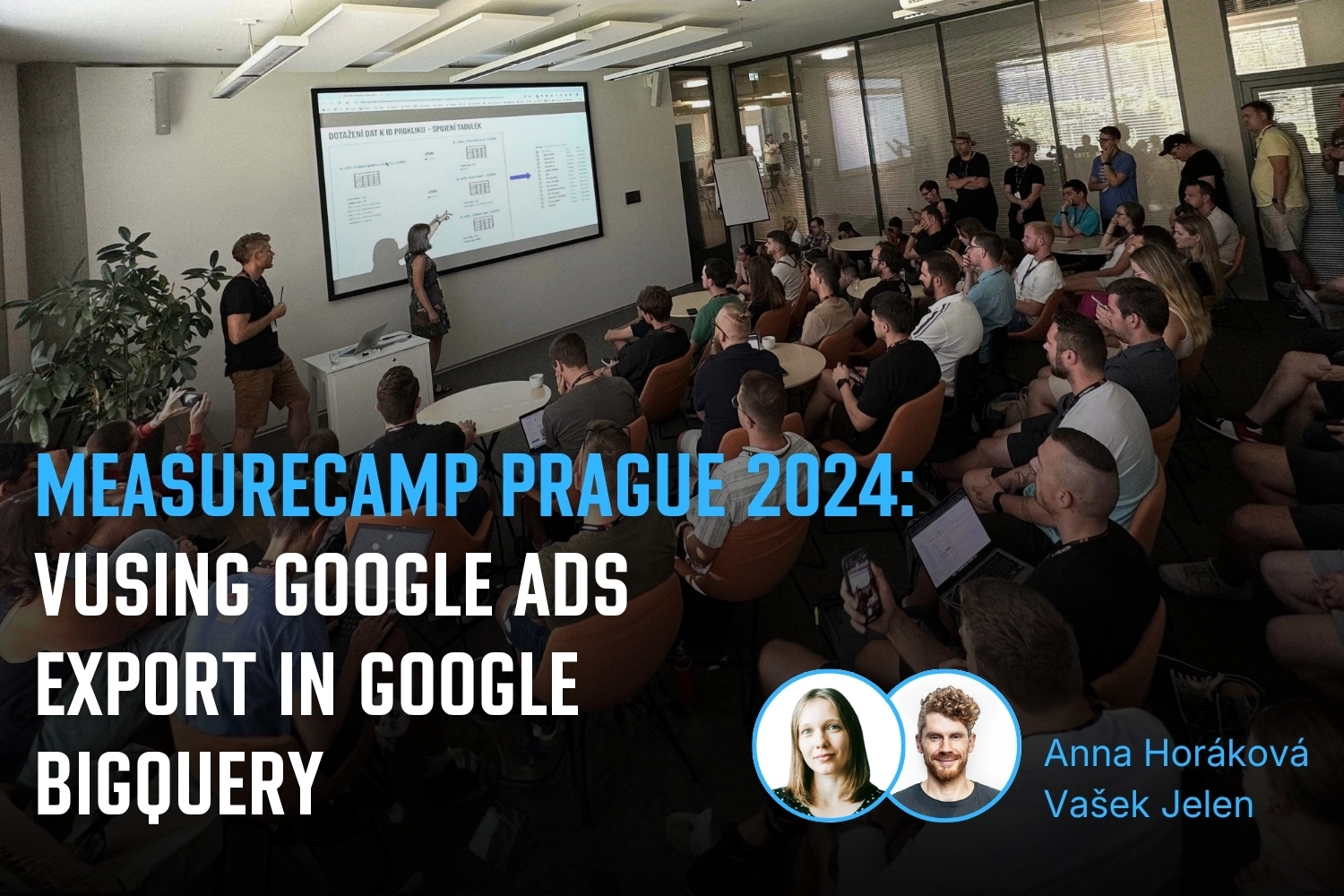
Vašek and Anička presented at MeasureCamp Prague on using Google Ads export in BigQuery, combining it with GA4 and CRM data to solve attribution issues.
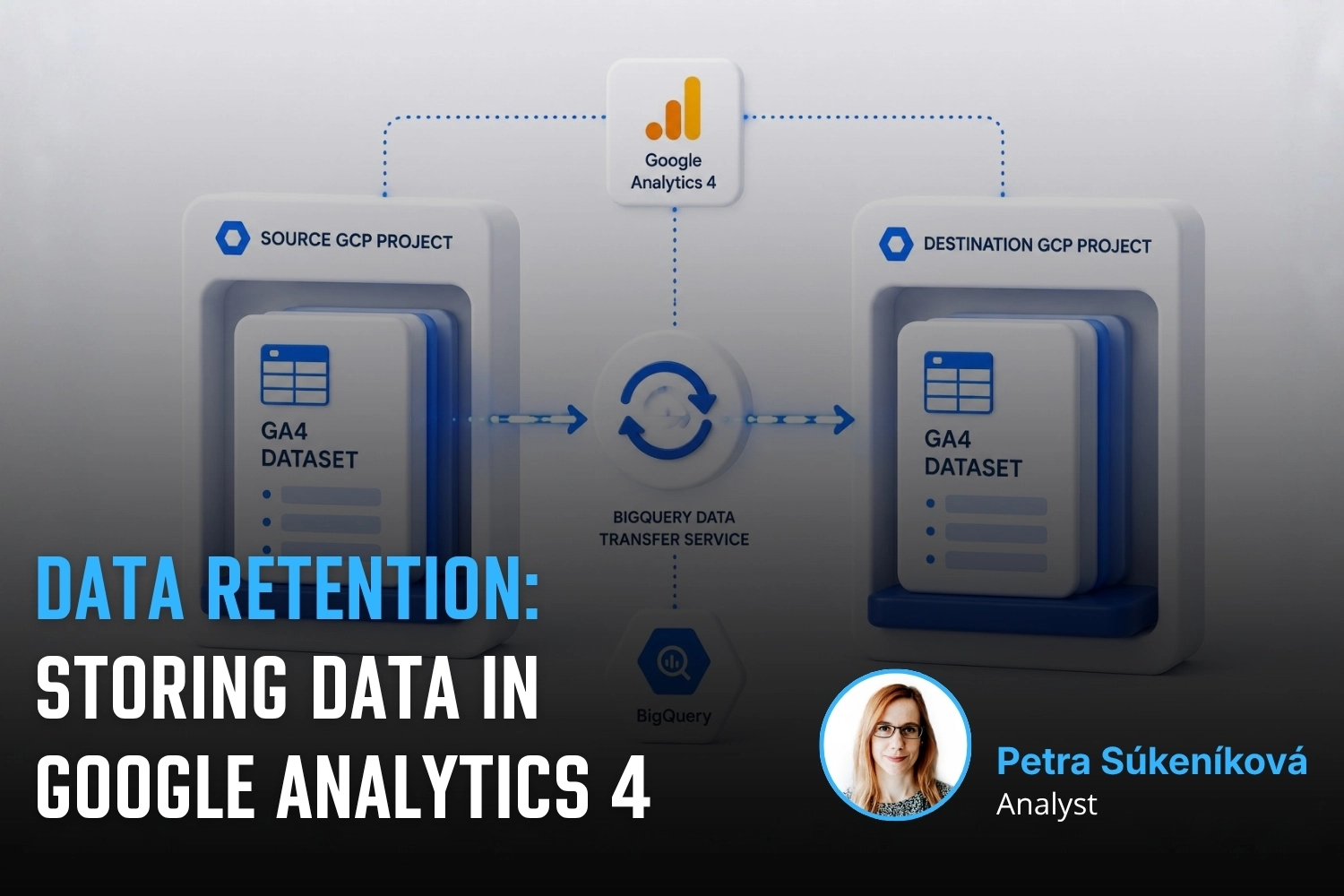
Learn how to extend GA4 data retention from 2 to 14 months. Understand what retention affects, how to change settings, and what happens after data expires.
Public webinar on evaluating campaigns using GA4 dataset in Google BigQuery. Featuring Vašek Ráš and Honza Tichý on DBT, SQL queries, and data flattening.
Jana focuses on UX, content and website development at MeasureDesign, making websites clearer and easier to use. She also designs and builds sites for her own clients and values teamwork and finding solutions together.
Vojtěch Černý
IT & Data Developer
Vojta works at MeasureDesign on developing technical and data solutions that are not only functional, but also practical and easy to use. He enjoys combining web development, automation, and data work to create solutions that make sense both from the user’s perspective and in terms of the technical foundations behind them. What he finds most rewarding is turning a more complex problem into a clean and reliable solution.
Jiří Otipka
Analyst
Jirka has been working in marketing for over 10 years, and if there is anything he enjoys more than numbers themselves, it is connecting them. He loves mathematics and data analytics, and thanks to his interest in exploring source code, he can easily communicate with developers in their own language. At MeasureDesign, he specializes in connecting new data sources - building custom connectors in Python, testing data quality, and exploring which data combinations make the most sense from a business perspective. He is completely at home in Looker Studio and also has extensive experience evaluating PPC campaign performance.
Lenka Pittnerová
Analyst
Lenka joined MeasureDesign at the end of 2025, bringing extensive experience from PPC marketing, where she spent many years working with Google Ads, Meta Ads, and other advertising platforms. While managing campaigns, she repeatedly ran into the same issue - poorly set up or insufficient web analytics, which made effective optimization nearly impossible. This challenge initially led her to analytics out of necessity, but over time she discovered that she enjoyed it even more than advertising itself. Today, she focuses primarily on implementing web analytics and data solutions that provide companies with high-quality, reliable data for strategic decision-making and performance marketing. She continues to work on selected PPC projects as well - not only because she still enjoys them, but mainly to stay closely connected to the reality of media platforms and the real needs of clients.
Martina Kvasničková
AI & Data Research
Marťa helps integrate AI into everyday work—making it faster, more efficient, and accessible to every team member. What excites her most is finding practical ways to use AI and turning new technologies into useful tools.
Anna Horáková
Analyst
Anička has over 7 years of experience in the agency world, where she has managed social media ad campaigns for clients, and especially for content-driven websites, her favorite. Wanting to broaden her perspective beyond campaign data, she gradually shifted her focus toward web analytics. She joined our team in 2022 and now specializes in data analytics, using GA4, BigQuery, Looker Studio, and other tools to connect and dig deeper into data — delivering insightful analyses and valuable input for business decisions. Anička was a member of our team until 2026.
Zuzana Mikyšková
Analyst & Co-Founder
Zuzka's career path led her through corporate innovation and research management, running word-of-mouth projects, and later to a digital agency, where she managed website development projects. However, Zuzka is naturally curious and wanted to understand how a website actually works once it is launched into the world. That curiosity led her to study web analytics — and eventually to a key collaboration with Vašek. In 2019, they founded the company together.
Vašek Jelen
Lead Analyst & Co-Founder
Vašek has been working in digital analytics for over 15 years — from setting up tracking to data storage, visualization, and interpretation. He helps companies keep their data in order and make full use of it. He focuses primarily on data from digital platforms such as websites, apps, and client zones, and on connecting that data with other business data like media and customer data. After years of freelancing, he co-founded the analytics studio MeasureDesign, where, in addition to working on analytics projects and bespoke training sessions, he also mentors and educates new analysts.
Blanka Hejduková
Back Office
Blanka joined our team in 2024 and has been responsible for back-office operations, including invoicing and administrative tasks, ever since. She draws on her experience from the Czech Post and her background in financial management to keep everything running smoothly. In her free time, she enjoys traveling with her two children and finds relaxation in working in her garden.
Markéta Svěráková
Analyst
Markéta started out in marketing, but then came maternity leave — and with it, total chaos. In an effort to hold on to the last bits of sanity, she turned to data. After all, numbers don’t yell, spill cereal into your keyboard, and at least they make some sense. She completed a data analytics course at Engeto Academy, where she bonded with SQL, Power BI, Excel, and Python, and started looking for patterns outside the bounds of children’s coloring books. Today, at MeasureDesign, she helps clients understand what their numbers are really saying.
Petra Súkeníková
Analyst
She joined MeasureDesign in 2023, specialising in measurement implementation and reporting. Her favourite moment is when, after all the setup and testing, the first data finally starts flowing in. Her biggest challenge? The unexpected (and often undocumented) changes from Google – those are the times when every analyst turns into a paranormal behaviour expert. 👻 She was a member of our team until summer 2026.
Klára Belzová
Analyst
Klára has been with the company since 2019. She focuses mainly on web analytics but is not afraid to dive into data work in BigQuery. What she enjoys most is guiding clients through the entire process — from defining their needs to implementing tracking and creating the final data visualizations.
She gets an almost suspicious amount of joy from a clean and well-organized GTM container or a report full of useful data.