Testing ClickUp MCP: hands-on experience with AI-powered automation, security concerns with access tokens, practical limitations, and who should use it.
As data analysts, we are constantly looking for ways to make our work more efficient. Since our company runs on ClickUp, we decided to test ClickUp MCP - a tool that lets you control ClickUp through AI assistants. In this article, we share our hands-on experience, the limitations we ran into, how secure access tokens really are, and who this solution actually makes sense for.
Lately, we have been testing the MCPs (Model Context Protocol) of various tools we work with. MCP is a standardized framework that allows AI assistants (Claude, ChatGPT, and others) to communicate with external tools. We use ClickUp to manage our team and our projects. It stores all our client records, project information, and carefully documented internal processes. That gives us a realistic way to plan capacity and keep detailed information about every project in one place. This is exactly where some MCP-based automation could help, because with the amount of work we handle, there is still quite a lot of repetitive clicking involved. We work with dozens of clients, after all, and if we could manage and edit the platform through AI commands, we could save time and spend it on other projects.
This article is meant to be useful for anyone planning to connect MCP to their own ClickUp. We want to offer an objective view of what you can actually expect from ClickUp MCP: its pros and cons, what working with it looks like in practice, and last but not least, how secure these MCP tools really are. We will walk through practical tests, show the specific limitations we ran into, and end with an honest assessment of who MCP makes sense for - and who it does not.
Which Clickup mcp we used
Official ClickUp MCP server - a solution built directly by the ClickUp team.
There are also several community alternatives. Most of them are available as open-source on GitHub and use an API token instead of OAuth. The most popular community options are nsxdavid and hauptsacheNet, but none of them has the same level of support as the official solution.
what can the clickup mcp do
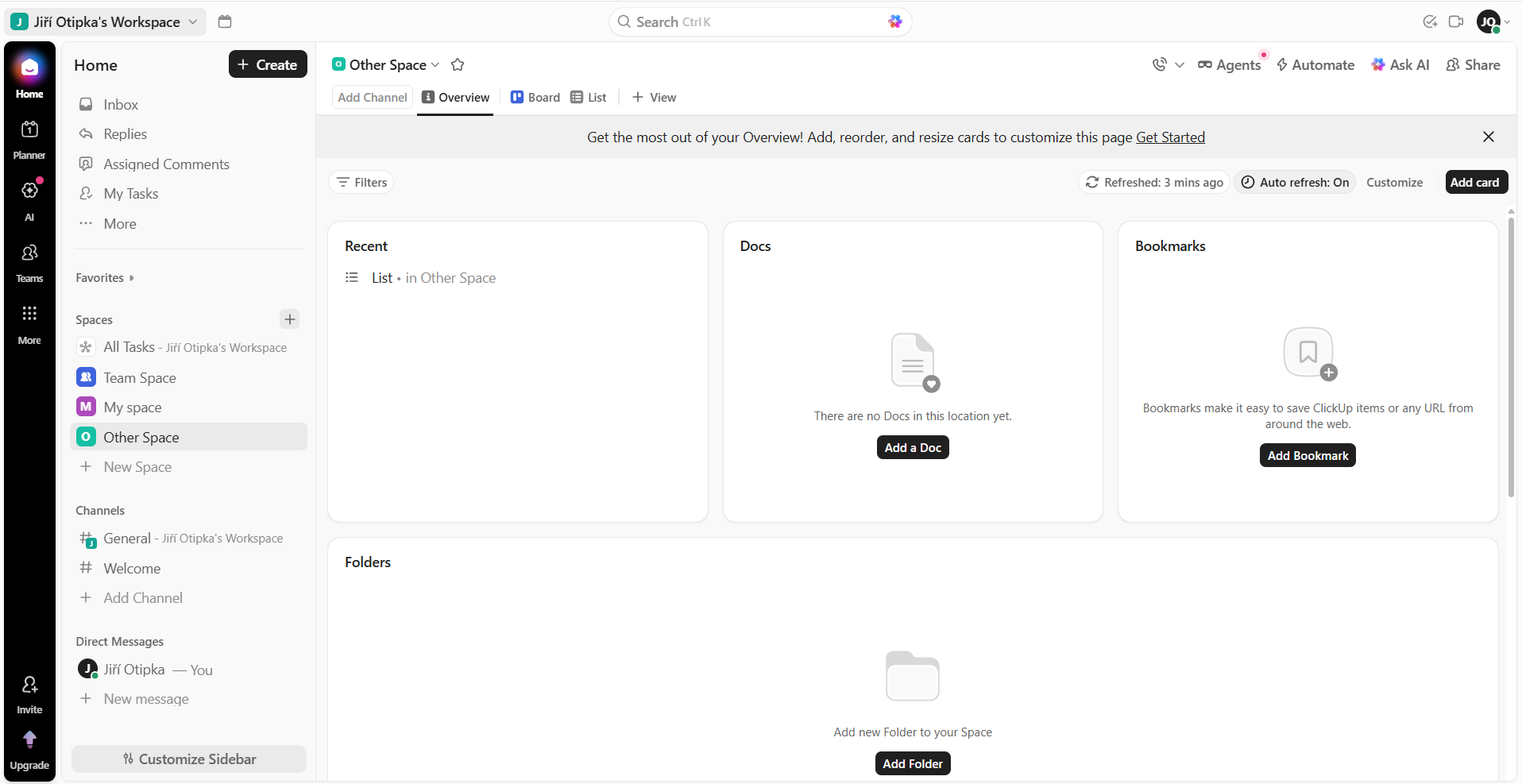
An example of the ClickUp test environment we connected MCP to
ClickUp MCP offers 33 specialized functions that are supposed to cover your day-to-day needs when working with this tool. These include:
- Time tracking - starting/stopping the timer, manual entries, worked-time overviews
- Comments - reading and adding task comments, notifying the team
- Docs - creating documents and pages, editing in Markdown
- Organization - creating Lists and Folders, managing workspace hierarchy
- Search - global search across tasks, docs, and chat messages
And this is exactly where the real advantage of MCP shows up: you do not have to click through things manually, you do not need to program anything, and you do not need to know the API documentation. You simply tell your AI - in our case, Claude Code: Create a task called “Media Data Analysis” for client XY and set the deadline for this Friday. The AI understands the full context and is able to complete the task. It breaks it down into multiple steps, uses the available functions, and works through the request one step at a time. Other practical examples that work well include:
Bulk operations: “Assign all tasks tagged ‘urgent’ to Jan” - one sentence, dozens of changes
Structure creation: “Create a Google Ads Analytics project with the phases Data Collection, Analysis, Visualization, Reporting” - Claude builds the full Folder/List structure
Reporting: “Give me an overview of completed tasks from the past week” - an instant report without manual filtering
Time tracking: “Start the timer” / “Stop the timer and show me how much I worked” - quick voice/text control
Complex task edits: setting the name, description, status, priority, due date, assignee, time estimate - all in a single command
All of these options are available across all ClickUp plans (Free, Unlimited, Business, Enterprise), and you can use them with the following AI clients:
- Claude Desktop
- Claude Code (CLI tool for developers)
- ChatGPT
- Cursor (AI code editor)
- VS Code with MCP extensions
What impressed us the most was the speed with which a fairly complex request could be completed in a matter of seconds. We also liked the flexibility, because the AI understands our intent and can turn it into specific tasks, then carry them out. And finally, there is the low barrier to entry. You do not need any programming knowledge to use this MCP. The AI handles everything for you, which could have a major impact on time savings.
our testing
We put ClickUp MCP through a number of practical tests to find its limits. Naturally, we did not want to run these tests on our official ClickUp account, where we keep client data. That would have been more than inappropriate. So we created a separate test account, connected Claude Code to it, and let it do its thing without any concerns. We designed the tests to verify whether MCP would cover our everyday needs and whether it would deliver the level of time savings we had hoped for.
Discovering the structure of a ClickUp workspace with Claude Code
The first test was simply connecting Claude Code to ClickUp MCP. That was easy enough. Login is handled through OAuth 2.0 authentication, which worked reliably. The workspace was recognized, and Claude was able to execute our commands. As for the login itself, it only needed to happen once. Since the access token is stored on your computer, you do not have to log in again every single day. It only saves a few seconds, but even that is a nice touch.
After the first login, we wanted to see whether Claude could understand the hierarchy of our account. We had it inspect the entire Workspace, all included Spaces, Folders, Lists, and tasks. With one simple prompt, Claude returned the structure of the entire account exactly as it had been created.
The next step was renaming a specific task. Again, no problem. Then we tried copying files between Spaces. Claude could not duplicate an entire Space in one go, but it was able to copy the files one by one and place them into the target Space where we wanted a backup. So that test also looked valid.
Another important part of working in ClickUp is editing tasks themselves. We had Claude modify a task’s name, description, status, priority, assignee, deadlines, time estimate, add a comment, and assign a specific tag. After all of these successful tests, we tried deleting the task we had been editing. And that is where we ran into major problems.
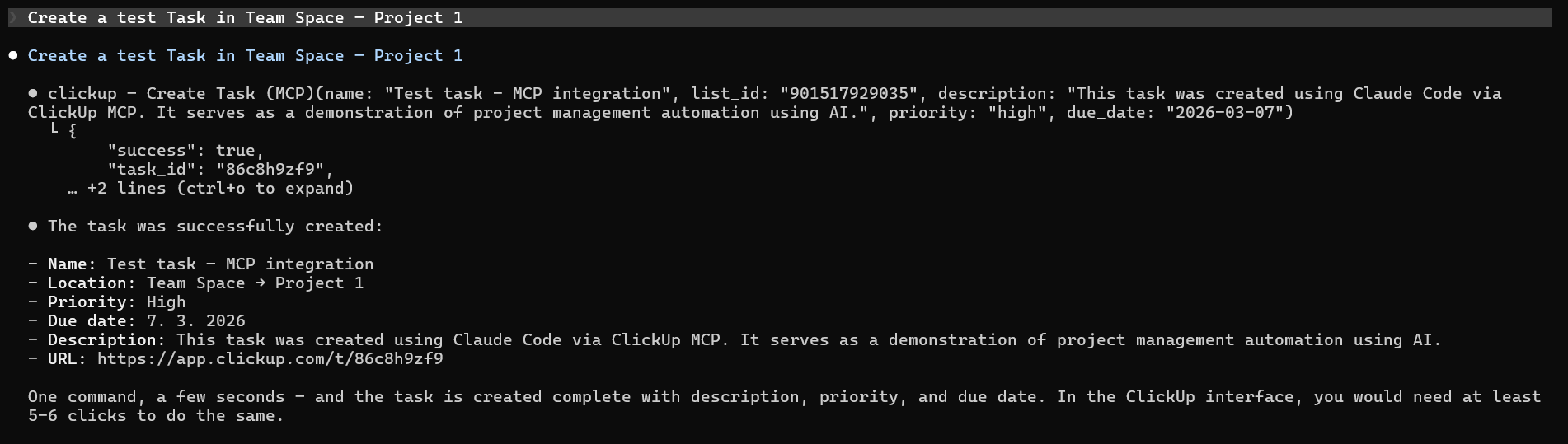
Command for the creation of a test task
what you cannot do with ClickUp mcp
The official ClickUp MCP cannot delete anything. Or rather - it technically could, but for security reasons, that functionality is not available. So yes, you can create things, but you cannot delete them. Next, we tried creating a new Space. That was not possible either. The same applied to renaming an existing Space. So if we wanted to create a new Space for a new client, Claude would not be able to help us with that task.
That led us to more practical questions - things we would actually need to automate. We work with labels that we create ourselves according to our needs. Each label is created at the individual Space level, which means we currently have to create them manually and assign them for each client. So we ran a practical test: can Claude create a new label for every client? It cannot. It can assign existing labels to tasks, but creating new labels across all Spaces is not supported either.
So we moved on to Custom Fields. These are custom columns with predefined values that we also work with quite often, and we want them standardized across all clients. Even updating these fields for twenty clients takes time. A lot of clicking and environment cleanup. Unfortunately Claude could not help here either. If there is no API function for it, it cannot be done.
Finally, we looked at automations. But ClickUp MCP is not the same thing as ClickUp Automations. Everything requires manual execution. You cannot create trigger-based workflows or recurring tasks.
An invalid request that Claude Code cannot complete through ClickUp MCP
In the end, it looks like working inside the Workspace is possible, and at a basic level it is not a problem. But once you go deeper and want to use more advanced functionality, you run into limits. Either because the necessary API function does not exist, or because security restrictions prevent the action from being performed.
Our disappointment with the limited API functionality led us to dig deeper, and that is when we came across community MCPs. Just like the official ClickUp MCP, there are other MCP servers for ClickUp. These are built by the community, and you can find their code directly on GitHub. These community MCPs solve many of the limitations of the official solution: full label management, bulk label creation across Spaces, creating, editing, and deleting tags, and broader support for Custom Fields. Community MCPs offer many advanced functions that were missing from the official MCP. The built-in safety limits are removed, and more complex work becomes possible and quite easy. It sounds very promising, and for our work it would probably be sufficient. But there is one big catch: what about security?
security aspects
The first thing worth stopping at is the token itself. Since we authorized through OAuth 2.0, an access token was stored on our computer. Every time Claude wants to connect to our ClickUp, it reads that token so it can get full access and work with the tool. You can probably already see where this is going. An access token is essentially a key. And if someone gets hold of that key, they gain access to all of your client data.
We ran our tests on a testing account, so we do not need to worry too much about losing that token. Even so, the topic itself is very interesting. Imagine using MCP to communicate with ClickUp, BigQuery, GA4, Google Ads, and other platforms. What happens to all those access tokens? They end up stored in one folder on your computer. If someone gains access to your machine through malware, they can simply take those tokens and gain access to all of those tools. It is worth keeping that in mind. You do not want an unknown attacker to have all those keys handed to them on a silver platter.
Claude explains how token storage works
Another big question is community MCPs. Are they safe to use? We have already established that the official MCP is not enough for our needs, which means we would have to rely on a community MCP anyway. Before using one, we would need to inspect in detail how it is written. We do not assume data leakage is happening, but how much confidence do you really have if you have not reviewed the code yourself and performed a deep audit of all functions? Because of that, we cannot say whether these MCPs are safe. We would simply be cautious, especially if our ClickUp contained highly sensitive data. You never know who might modify the code for their own purposes and leave behind a security hole you may regret later.
Conclusion
We cannot say that ClickUp MCP is unusable. It looks quite decent, and for small teams or personal projects it may be an effective solution. There are plenty of functions you can use in practice. More advanced work is possible too. However only with community MCPs, where you need to weigh the security risks. If those risks are not a concern for you, then AI can give you full control over your ClickUp. In our case, we decided not to go down that path and to stick with good old manual work.
The main reason for us was security. We work with data from dozens of clients, and having all access tokens stored in one configuration file in plain text is a risk we simply cannot afford. One piece of malware or one careless mistake is enough for an attacker to gain access not only to ClickUp, but potentially to all connected services at once.
The second reason was the practical limitations we ran into. Label isolation at the individual Space level, the inability to create Custom Fields through MCP, and the absolute ban on deleting data are restrictions that do not save us time in a multi-client environment. It actually adds more work.
Still, we want to stay objective. ClickUp MCP does make sense if:
- you are an individual or a small team working on a single project
- you do not work with sensitive client data
- you need to quickly create and edit tasks, log time, or generate reports
- you are looking for a tool for personal productivity or prototyping
In those cases, MCP can genuinely save you hours of work, and the barrier to entry is practically zero.
ClickUp MCP is still in beta and actively evolving. We are not ruling out the possibility that a future version may solve the current limitations - better label management, more secure token storage, or support for creating Custom Fields. We will be keeping an eye on that development. Until then, though, we recommend that anyone considering MCP deployment carefully evaluate their own situation: what data they manage in ClickUp, how many clients they serve, and what security standards they need to meet. Only then can you make an informed decision about whether MCP is the right solution for you.
Who is behind the article
Jiří Otipka
Analyst
Jirka connects new data sources, builds Python connectors and ensures data quality, drawing on his expertise in analytics, PPC and Looker Studio.
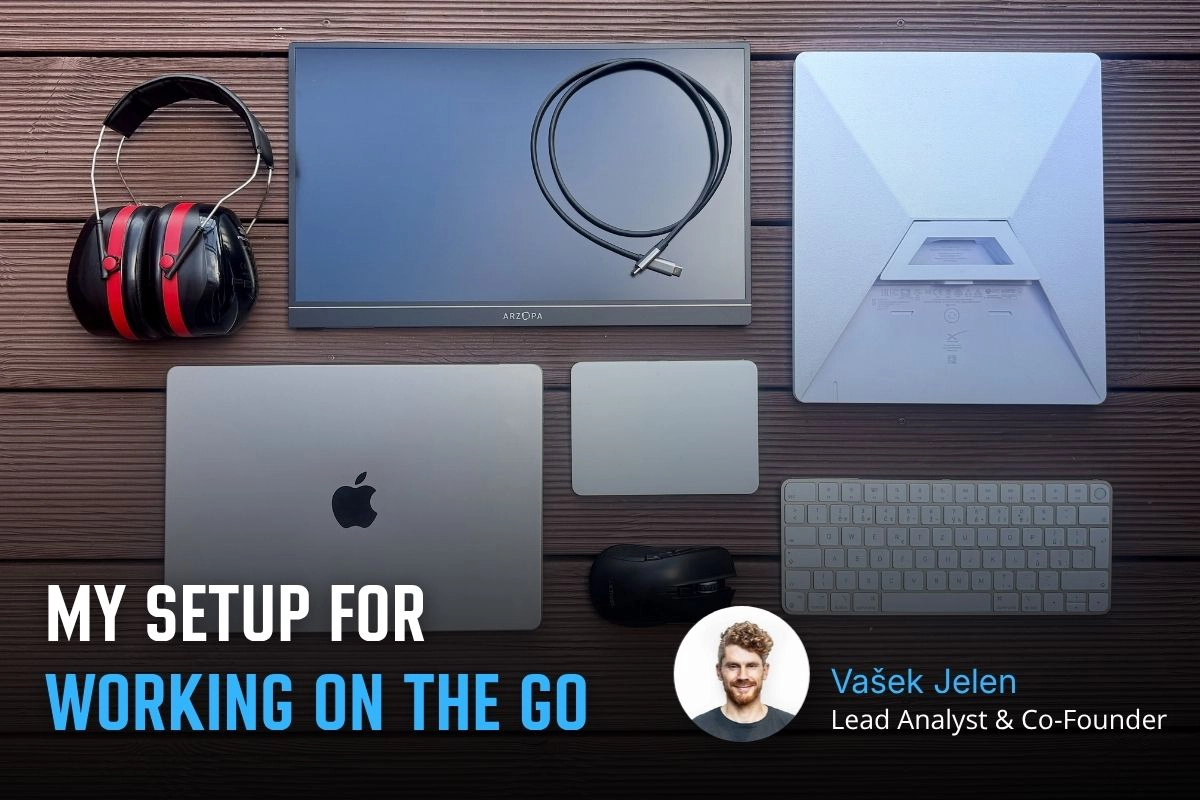
Working on the go has its benefits, but also a few practical challenges. I’m sharing the setup I’ve fine-tuned over the years that lets me work comfortably from anywhere – from connectivity and a second monitor to ergonomics.
What should a PPC specialist know about analytics and data collection? In our workshop for uLab, we covered the entire chain, from the technical components of tracking and media platforms to collecting and activating first-party data.
How do you get data from multiple ad platforms into a single data warehouse, typically BigQuery? We’ll walk through the core architecture and key decisions before you start exporting data from Google Ads, Meta Ads, Sklik, and other platforms.
Part 3 of our first-party data series gets technical again – we'll show you how to check that data is correctly reaching each system and doing what it should. We'll look at outgoing hits in DevTools and at checks directly in the ad platforms.
A detailed guide to sessionizing the GA4 BigQuery export — from identifying sessions and reliably ordering events to two attribution models (First Event Available and Session Start), their limitations, and validating agreement between them.
Learn how to deploy server-side tracking on Google Cloud Run. Compare Stape vs Cloud Run, configure load balancers, choose billing types, and test your setup.
Complete technical guide to collecting first-party data via dataLayer, normalizing, hashing, and sending through server-side GTM to Google Ads and Meta.
Testing ClickUp MCP: hands-on experience with AI-powered automation, security concerns with access tokens, practical limitations, and who should use it.
Learn how first-party data improves campaign performance, measurement accuracy, and cross-device tracking. Discover practical ways to collect and use it.
Workshops on advanced digital analytics: BigQuery, cookieless tracking, consent, attribution, and building data warehouses for reporting and activation.
Why analytics is an excellent career for women, including those returning from maternity leave. A personal story about transitioning into data analytics.
A look back at Reshoper - advising e-shop owners on tracking and measurement, plus a roundtable on marketing automation with insights on self-hosted N8N.
From Idea to App in 48 Hours 🚀 Building AI-powered apps at #HackYourWeekend using Claude Code, tracking with BigQuery, and lessons from team development.
Recap of PPC Camp: my presentation on legally measuring data without user consent - cookieless tracking, sGTM, BigQuery, Facebook conversions, and Advanced Consent Mode risks.
Ready-to-use BigQuery SQL script to calculate Easter dates (2024-2100) using Computus algorithm. Perfect for filtering GA4 data and analyzing seasonal trends.
GA4 + BigQuery in practice: connecting analytics, CRM & media data, real-world use cases from IKEA, Shoptet, McDonald's & Česká spořitelna, and what it unlocks for marketing.
Vašek and Anička presented at MeasureCamp Prague on using Google Ads export in BigQuery, combining it with GA4 and CRM data to solve attribution issues.
Learn how to extend GA4 data retention from 2 to 14 months. Understand what retention affects, how to change settings, and what happens after data expires.
Public webinar on evaluating campaigns using GA4 dataset in Google BigQuery. Featuring Vašek Ráš and Honza Tichý on DBT, SQL queries, and data flattening.
Jana focuses on UX, content and website development at MeasureDesign, making websites clearer and easier to use. She also designs and builds sites for her own clients and values teamwork and finding solutions together.
Vojtěch Černý
IT & Data Developer
Vojta works at MeasureDesign on developing technical and data solutions that are not only functional, but also practical and easy to use. He enjoys combining web development, automation, and data work to create solutions that make sense both from the user’s perspective and in terms of the technical foundations behind them. What he finds most rewarding is turning a more complex problem into a clean and reliable solution.
Jiří Otipka
Analyst
Jirka has been working in marketing for over 10 years, and if there is anything he enjoys more than numbers themselves, it is connecting them. He loves mathematics and data analytics, and thanks to his interest in exploring source code, he can easily communicate with developers in their own language. At MeasureDesign, he specializes in connecting new data sources - building custom connectors in Python, testing data quality, and exploring which data combinations make the most sense from a business perspective. He is completely at home in Looker Studio and also has extensive experience evaluating PPC campaign performance.
Lenka Pittnerová
Analyst
Lenka joined MeasureDesign at the end of 2025, bringing extensive experience from PPC marketing, where she spent many years working with Google Ads, Meta Ads, and other advertising platforms. While managing campaigns, she repeatedly ran into the same issue - poorly set up or insufficient web analytics, which made effective optimization nearly impossible. This challenge initially led her to analytics out of necessity, but over time she discovered that she enjoyed it even more than advertising itself. Today, she focuses primarily on implementing web analytics and data solutions that provide companies with high-quality, reliable data for strategic decision-making and performance marketing. She continues to work on selected PPC projects as well - not only because she still enjoys them, but mainly to stay closely connected to the reality of media platforms and the real needs of clients.
Martina Kvasničková
AI & Data Research
Marťa helps integrate AI into everyday work—making it faster, more efficient, and accessible to every team member. What excites her most is finding practical ways to use AI and turning new technologies into useful tools.
Anna Horáková
Analyst
Anička has over 7 years of experience in the agency world, where she has managed social media ad campaigns for clients, and especially for content-driven websites, her favorite. Wanting to broaden her perspective beyond campaign data, she gradually shifted her focus toward web analytics. She joined our team in 2022 and now specializes in data analytics, using GA4, BigQuery, Looker Studio, and other tools to connect and dig deeper into data — delivering insightful analyses and valuable input for business decisions. Anička was a member of our team until 2026.
Zuzana Mikyšková
Analyst & Co-Founder
Zuzka's career path led her through corporate innovation and research management, running word-of-mouth projects, and later to a digital agency, where she managed website development projects. However, Zuzka is naturally curious and wanted to understand how a website actually works once it is launched into the world. That curiosity led her to study web analytics — and eventually to a key collaboration with Vašek. In 2019, they founded the company together.
Vašek Jelen
Lead Analyst & Co-Founder
Vašek has been working in digital analytics for over 15 years — from setting up tracking to data storage, visualization, and interpretation. He helps companies keep their data in order and make full use of it. He focuses primarily on data from digital platforms such as websites, apps, and client zones, and on connecting that data with other business data like media and customer data. After years of freelancing, he co-founded the analytics studio MeasureDesign, where, in addition to working on analytics projects and bespoke training sessions, he also mentors and educates new analysts.
Blanka Hejduková
Back Office
Blanka joined our team in 2024 and has been responsible for back-office operations, including invoicing and administrative tasks, ever since. She draws on her experience from the Czech Post and her background in financial management to keep everything running smoothly. In her free time, she enjoys traveling with her two children and finds relaxation in working in her garden.
Markéta Svěráková
Analyst
Markéta started out in marketing, but then came maternity leave — and with it, total chaos. In an effort to hold on to the last bits of sanity, she turned to data. After all, numbers don’t yell, spill cereal into your keyboard, and at least they make some sense. She completed a data analytics course at Engeto Academy, where she bonded with SQL, Power BI, Excel, and Python, and started looking for patterns outside the bounds of children’s coloring books. Today, at MeasureDesign, she helps clients understand what their numbers are really saying.
Petra Súkeníková
Analyst
She joined MeasureDesign in 2023, specialising in measurement implementation and reporting. Her favourite moment is when, after all the setup and testing, the first data finally starts flowing in. Her biggest challenge? The unexpected (and often undocumented) changes from Google – those are the times when every analyst turns into a paranormal behaviour expert. 👻 She was a member of our team until summer 2026.
Klára Belzová
Analyst
Klára has been with the company since 2019. She focuses mainly on web analytics but is not afraid to dive into data work in BigQuery. What she enjoys most is guiding clients through the entire process — from defining their needs to implementing tracking and creating the final data visualizations.
She gets an almost suspicious amount of joy from a clean and well-organized GTM container or a report full of useful data.